
Your Sailing Logbook in Excel
Below you'll find a step by step manual, explaining how to get the ship's log — gathered with Logbook App — imported to Excel. This example uses real trip data from a trip in the Adriatic Sea from the year 2013.
Pleasure first! Before we come to Excel
As you know, Logbook App relieves you of a lot tasks at sea, so let's expect you have a nice trip behind you and you would like to create your own individual statistics or other evaluation in Excel. Let's imagine this trip is over, you're back home.
Export your Logbook as CSV
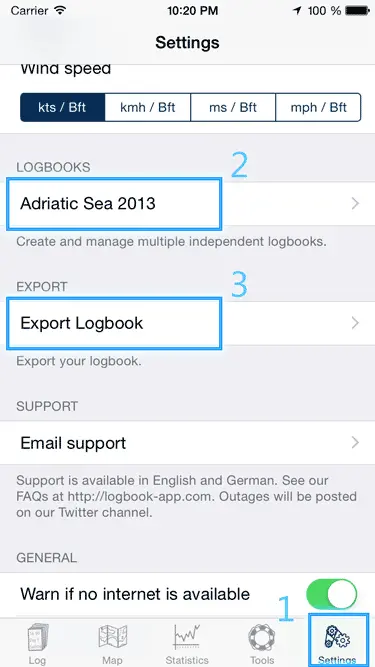
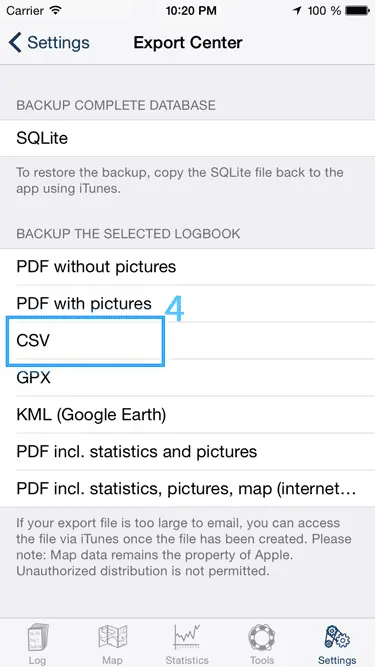
Go to Settings (1) and scroll down to ensure you selected the correct logbook to export (2). Just a bit further down you will find the Export Center (3). Choose Export as CSV (4) and wait until the mail application appears. This might take some time depending on your logbook size and the iPhone or iPad you use. Next send this mail to yourself to get access from your Mac or PC.
Import CSV in Excel
What is a CSV and why not simply using .xls or .xlsx?
CSV stands for Comma Separated Values and means your data is in different columns where each column is delimited by a comma. So this format is really easy for humans to read and understand. In Excel there are also columns, and the only specific thing is we use a semicolon ; as delimiter. As it could also be the case you used a semicolon in a log record. To avoid this undesired additional column each column's data is embedded in quotes. The big advantage is the format is mainly independent to operating systems or application. So you could also import this data with Open Office on a Linux operated system.
Which character set is used for my sailing logbook CSV file for Excel?
As the Logbook App uses geocoding and automatically translates your position into a local text string, this string could contain characters beyond ASCII. For example the Logbook App could geoencode your position to 1.2 NM south Rear Light Hörnum, Šipan Island, or Korčula. To support those non-ASCII characters Logbook uses UTF-8 encoding. With UTF-8 character set it is ensured to support most special characters. Unfortunately Excel does not interpret CSV files as UTF-8 by simply opening them into Excel with a double click on the file.
Difference between Windows and Mac
Excel for Mac has a bug. Importing with the common function Data, From Text, Excel 2011 cannot import data that is UTF-8 encoded. Windows versions do not have this bug and you can choose UTF-8 character set during the import process. However this page explains the more complex way that works on both platforms.
Well and how can you get your Logbook to Excel?
The previous explanation sounds more complex than it actually is. First you have to open the CSV file in a common text editor which supports UTF-8.
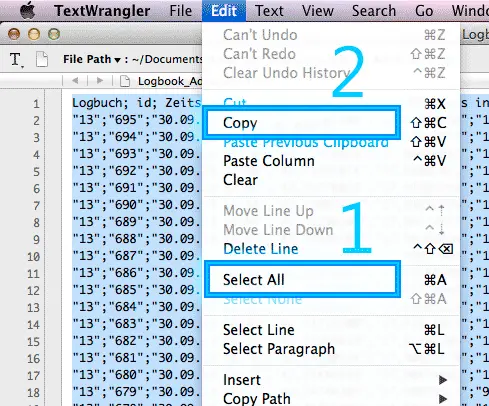
Select all (1) and copy it to clipboard (2). Next open Excel
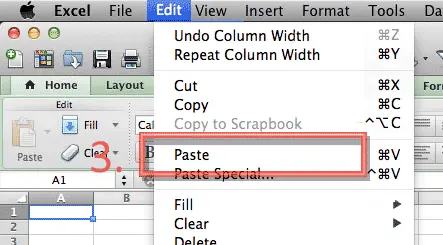
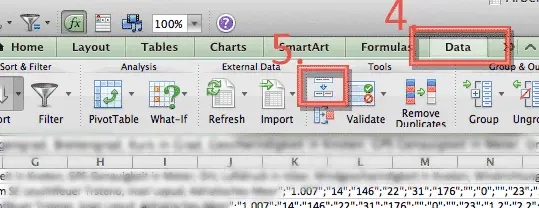
and paste your content to the spreadsheet (3). Ensure the whole column A is selected. Switch to the ribbon Data (4) and on the small icon for Text to Columns (5).
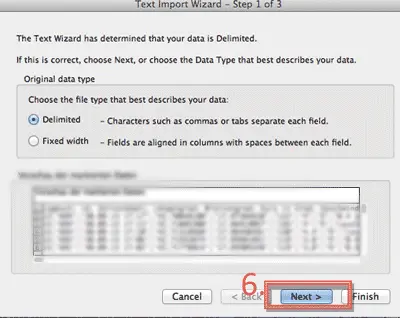
Within the first step of the wizard just click on next (6).
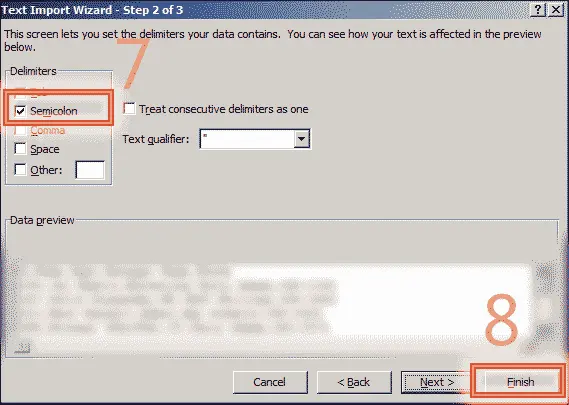
In step 2 it is important to switch the delimiter from comma to semicolon (7) and click on Finish (8).
Caution! If you are using a comma as thousands separator and a dot as decimal separator (as usual in the United States), you need to switch those values. Therefore go to the 3rd step as well, click on Advanced and choose a dot as thousands separator and a comma as decimal separator. Afterwards click OK and Finish.
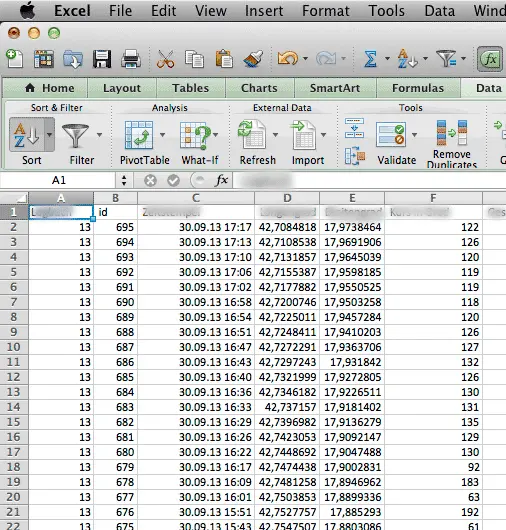
Finally you should have your entire logbook imported into Excel for further processing or whatever you would like to do.
Sailing Logbook Example for Download
You can download the Sailing Logbook For Excel as CSV file as it would get exported from the app in UTF-8.